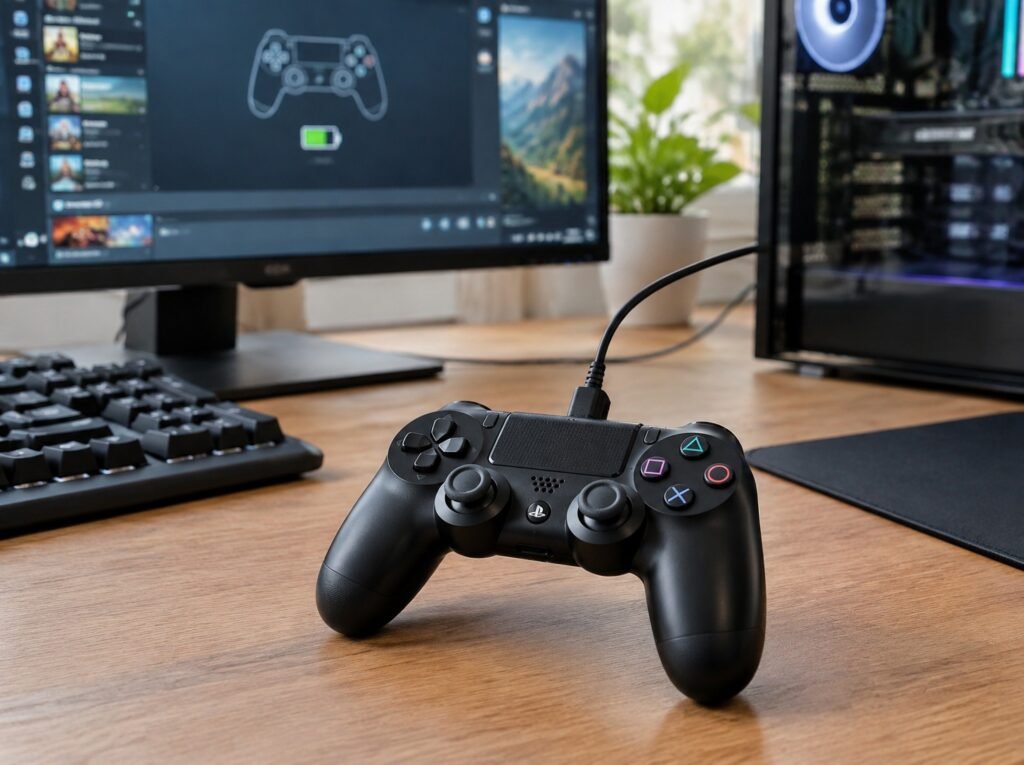
There is nothing more frustrating than having your PS4 controller disconnect in the middle of an intense gaming session. Whether you are exploring an open-world game, competing in an online match, or enjoying a casual gaming session, a low controller battery can interrupt your experience at the worst possible moment.
If you use a PS4 DualShock 4 controller on your PC through Steam, you might wonder how to check its remaining battery percentage without disconnecting it or installing unnecessary software.
The good news is that Steam can display your PS4 controller’s battery status when the controller is properly connected and recognised. You can usually find this information through Steam’s controller settings or its Big Picture interface.
In this guide, you will learn how to check your PS4 controller battery on Steam, enable the necessary controller settings, troubleshoot missing battery information, and keep your controller charged during longer gaming sessions.
Let’s get started.
1. How to Check PS4 Controller Battery on Steam
The easiest way to check your DualShock 4 battery level is through Steam’s built-in controller interface. Before checking the battery, make sure your controller is connected to your computer.
Follow these steps:
Step 1: Connect Your PS4 Controller to Your PC
First, connect your DualShock 4 controller to your computer.
You have two main options:
- USB connection: Connect your PS4 controller to your PC using a compatible Micro-USB cable.
- Bluetooth connection: Pair your controller wirelessly through your computer’s Bluetooth settings.
For Bluetooth pairing, press and hold the PS and Share buttons together until the controller’s light bar starts flashing. Open your PC’s Bluetooth settings, select the available Wireless Controller device, and complete the pairing process.
A USB connection is generally easier for initial setup because it avoids potential wireless pairing problems.
Step 2: Open Steam
Once your controller is connected, launch the Steam desktop application.
Make sure Steam is running normally and that you are logged into your account.
Step 3: Open Steam’s Controller Settings
Click Steam in the upper-left corner of the application and select Settings.
Next, locate the Controller section in the settings menu.
Depending on your Steam version, the exact layout and available options may look slightly different.
Step 4: Check Whether Steam Recognises Your Controller
Look for the connected controller in Steam’s controller settings.
Steam should recognise a compatible DualShock 4 controller when it is connected correctly and supported by the current configuration.
If Steam recognises the controller, you can proceed to check the available battery information.
Step 5: Check the Battery Indicator
Steam’s controller interface may display a battery icon or battery status for a connected wireless controller.
You can also check the controller status through Steam Big Picture Mode, where controller-related information is easier to access.
Important: Steam does not display an exact battery percentage in every configuration. Depending on your connection method, Steam version, and controller support, you may see a battery icon or an approximate charge status rather than a precise percentage.
2. How to Check PS4 Controller Battery Using Steam Big Picture Mode
If you cannot easily find your controller’s battery information in the regular Steam interface, Big Picture Mode is another place to check.
Big Picture Mode provides a controller-friendly interface designed for navigating Steam with a gamepad.
Here is how to use it.
Step 1: Open Big Picture Mode
Launch Steam and click the Big Picture Mode icon, usually located near the upper-right corner of the application.
Alternatively, use the Big Picture option available through Steam’s View menu, depending on your client version.
Step 2: Open Controller Settings
Once Big Picture Mode opens, navigate to the settings section.
Select the controller settings option to view your connected devices and available controller configurations.
Step 3: Locate Your DualShock 4 Controller
Check whether your PS4 controller appears as a connected device.
If it is recognised, Steam should be able to use it for compatible games and controller navigation.
Step 4: Look for Battery Information
Check the controller information displayed in the interface.
If Steam receives battery information from your controller, a battery indicator may appear.
Keep in mind that the location and availability of this information can vary between Steam versions and connection types.
Quick tip: If your controller is connected through Bluetooth but the battery indicator is missing, try connecting it through USB first. This can help determine whether the issue is related to wireless pairing or battery reporting.
3. What to Do If Steam Does Not Show Your PS4 Controller Battery
Sometimes Steam recognises a PS4 controller but does not show its battery level. This does not necessarily mean your controller is faulty.
Several factors can affect battery reporting, including connection problems, outdated software, controller compatibility, and Steam configuration.
Try the following solutions.
Fix 1: Enable PlayStation Controller Support
Steam includes built-in support for PlayStation controllers.
To check your configuration:
- Open Steam.
- Go to Settings.
- Select Controller.
- Find the PlayStation controller support options.
- Make sure the appropriate support is enabled if required.
Steam’s interface and configuration options may change with updates, so the names of individual settings can vary.
After changing the settings, disconnect and reconnect your controller.
Fix 2: Reconnect Your Controller
A temporary connection issue can prevent Steam from receiving controller information.
Try these steps:
- Disconnect your PS4 controller.
- Close and reopen Steam.
- Reconnect the controller using USB or Bluetooth.
- Open the controller settings again.
- Check whether the battery indicator appears.
If you are using Bluetooth, remove the existing Wireless Controller pairing from your PC and pair the device again if necessary.
Fix 3: Update Steam
Running an outdated Steam client can sometimes cause compatibility or interface problems.
To update Steam:
- Open the Steam application.
- Click Steam in the upper-left corner.
- Select Check for Steam Client Updates if the option is available.
- Install any available update.
- Restart Steam.
After restarting, reconnect your controller and check its status.
Fix 4: Try a Different USB Cable
Not every Micro-USB cable supports data transfer. Some cables are designed only for charging.
If Steam does not recognise your controller through USB, try another cable that supports both charging and data.
Also, test a different USB port on your computer.
This is particularly useful when the controller charges successfully but does not appear in Steam.
Fix 5: Check Your Controller Battery Manually
If Steam still does not display battery information, check the controller itself.
The DualShock 4 light bar can provide a useful visual indication of charging activity when the controller is connected to a suitable power source.
However, its colour should not be treated as a precise battery percentage indicator.
For a more direct check, reconnect the controller to your PS4 console and use the console’s controller battery indicator.
4. How to Check PS4 Controller Battery Without Steam
If Steam does not provide the battery information you need, you can use alternative methods.
These options are especially useful when you want a more reliable indication of your DualShock 4’s remaining charge.
Method 1: Check Through a PS4 Console
If you have access to a PlayStation 4, this is one of the simplest alternatives.
Follow these steps:
- Connect your controller to your PS4.
- Turn on the console.
- Press and hold the PS button on your controller.
- Open the Quick Menu.
- Locate the controller battery indicator.
The battery icon provides a visual indication of the remaining charge.
This method is convenient if you already own a PS4 and occasionally switch between console and PC gaming.
Method 2: Use DS4Windows
DS4Windows is a third-party Windows application designed to support and configure PlayStation controllers on PC.
Depending on the version and configuration, it can provide additional controller information, including battery status.
To use it:
- Download DS4Windows from its official project source.
- Install the application and follow its setup instructions.
- Connect your DualShock 4 controller.
- Open the application.
- Locate your connected controller in the device list.
- Check the battery information if it is reported.
Security tip: Download controller software only from its official project repository or a trusted source. Avoid unofficial installers and suspicious download websites.
You generally do not need DS4Windows simply to use a PS4 controller with Steam, because Steam already offers native PlayStation controller support.
Method 3: Check the Controller’s Charging Status
You can also connect your controller to a USB power source.
The DualShock 4 light bar normally pulses orange while charging when the controller is in rest mode or switched off.
When charging is complete, the light bar stops pulsing.
This method helps you identify whether the controller is charging, although it does not provide an exact remaining battery percentage.
5. Tips to Keep Your PS4 Controller Battery Healthy
Checking your battery level regularly is useful, but maintaining good charging habits can also help you avoid unexpected disconnections.
Here are some practical recommendations.
Avoid Letting the Battery Drain Completely
Try to recharge your controller before it completely runs out of power.
You do not need to wait until the battery reaches zero before charging it.
Use a Reliable Charging Cable
Use a good-quality Micro-USB cable that is compatible with your DualShock 4.
A damaged cable or loose connection can interrupt charging and create unnecessary frustration.
Disconnect Unnecessary Bluetooth Devices
Wireless interference and connection issues can sometimes affect your gaming experience.
Keep your controller within a reasonable distance of your PC and avoid unnecessary wireless obstructions.
Turn Off Your Controller When Not in Use
When you finish gaming, disconnect or switch off your controller if you are not using it.
You can usually hold the PS button and use the available power options to turn off the controller.
This helps prevent unnecessary battery consumption.
Keep Your Controller Away from Extreme Temperatures
Avoid leaving your DualShock 4 in direct sunlight, near heaters, or in excessively hot environments.
Extreme temperatures can negatively affect rechargeable lithium-ion batteries over time.
6. Common Problems When Checking a PS4 Controller Battery on Steam
Before giving up, consider these common situations and their possible solutions.
| Problem | Possible solution |
|---|---|
| Steam does not recognise the controller | Reconnect it and check PlayStation controller support. |
| Battery icon is missing | Try Bluetooth pairing again or check another battery-monitoring method. |
| Controller works but battery percentage is unavailable | Steam may not receive or display an exact percentage for your configuration. |
| Controller disconnects during gameplay | Recharge it and check the USB or Bluetooth connection. |
| Controller charges but does not connect | Try a data-capable USB cable and another USB port. |
| Battery drains unusually quickly | Check battery age, charging habits, and possible hardware problems. |
One important distinction is worth remembering: controller recognition and battery reporting are two different things.
Steam may successfully recognise your DualShock 4 and allow you to play games without receiving all the battery information you expect.
If that happens, it does not automatically indicate a problem with the controller.
Frequently Asked Questions (FAQs)
1. Can You Check the PS4 Controller Battery Percentage on Steam?
Steam can display battery status for supported controllers, but an exact percentage is not guaranteed for every DualShock 4 setup.
Depending on your Steam version and connection method, you may see a battery icon or an approximate charge indicator instead.
2. Why Is My PS4 Controller Battery Not Showing on Steam?
Your PS4 controller battery may not appear because of connection problems, outdated Steam software, controller configuration issues, or limited battery reporting.
Try reconnecting the controller, updating Steam, and checking the controller settings.
If the information is still unavailable, use your PS4 console or compatible third-party software to check the battery status.
3. Does Steam Support the PS4 DualShock 4 Controller?
Yes. Steam provides built-in support for the PlayStation DualShock 4 controller.
You can connect it through USB or Bluetooth and use it with compatible Steam games. Some games may require additional controller configuration.
4. Can I Check My PS4 Controller Battery Without Connecting It to a PS4?
Yes. You can check available battery information through Steam or compatible third-party controller software on your PC.
However, the information displayed depends on the software, connection method, and controller configuration.
5. How Do I Know When My PS4 Controller Is Fully Charged?
When a DualShock 4 is charging while switched off or in rest mode, its light bar normally pulses orange.
Once charging is complete, the light bar stops pulsing. This indicates charging completion rather than a specific battery percentage.
Conclusion
Knowing how to check your PS4 controller battery on Steam can help you avoid unexpected interruptions and enjoy longer gaming sessions.
Start by connecting your DualShock 4 through USB or Bluetooth, opening Steam’s controller settings, and checking the available battery information. If you cannot find a battery indicator, try Steam Big Picture Mode, reconnect your controller, or update your Steam client.
Remember that Steam does not guarantee an exact battery percentage for every controller configuration. If you need more detailed information, DS4Windows or your PS4 console may provide a useful alternative.
The most important thing is to check your controller’s charge before starting a long gaming session. A few seconds of preparation can save you from an unexpected disconnection when you are right in the middle of a game.
