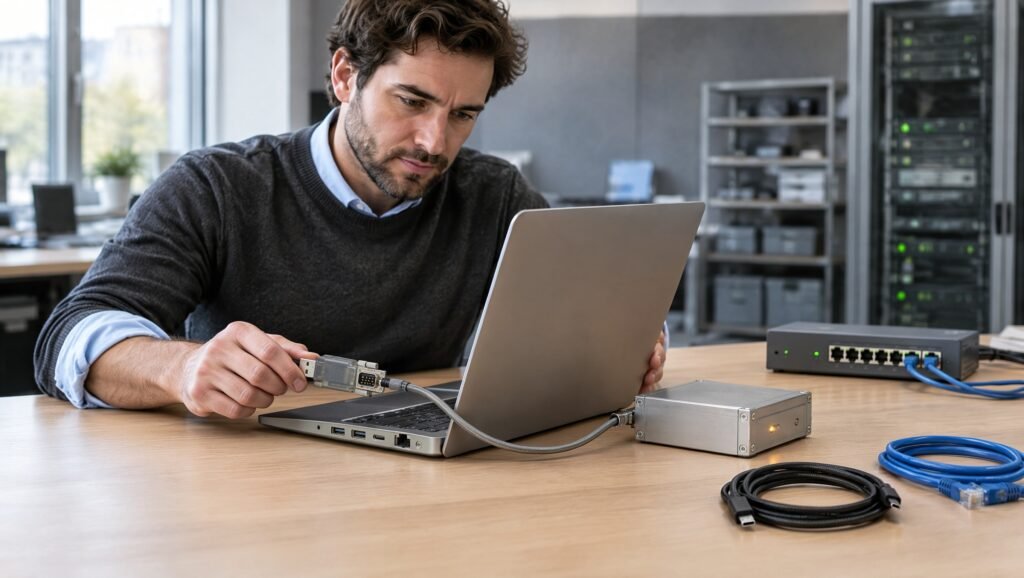
If you’re looking for how to fix port reset failed errors, the first step is to identify whether the problem involves a USB device, serial port, or network connection. This error can occur when a device fails to initialize, a driver stops working correctly, or an application cannot access the required communication port.
Many port-related problems can be resolved with a few systematic checks. In this guide, you’ll learn how to identify common causes, troubleshoot the error step by step, and determine when more advanced solutions may be necessary.
What Does “Port Reset Failed” Mean?
A “Port Reset Failed” error generally indicates that a system or application attempted to reset or reinitialize a communication port but could not complete the operation successfully.
A port provides a way for software, hardware, or network services to communicate. However, the term port can refer to several different things.
For example:
- USB ports: Connect peripherals such as keyboards, external drives, printers, and USB-to-serial adapters.
- Serial ports (COM ports): Allow computers to communicate with devices such as microcontrollers, industrial equipment, and diagnostic tools.
- Network ports: Enable applications and services to exchange data using protocols such as TCP and UDP.
- Application communication ports: Allow specific programs to communicate locally or across a network.
The appropriate fix depends on which type of port is involved. A USB device that fails to initialize requires a different troubleshooting approach from a network application that cannot establish a connection.
It is also important to understand that “Port Reset Failed” is not a single universal error code. Its exact meaning depends on the operating system, device, application, and circumstances in which the message appears.
Common Causes of the Port Reset Failed Error
Before attempting complicated fixes, consider the most likely causes.
1. Loose or Faulty Physical Connections
A damaged cable, loose connector, malfunctioning USB port, or unstable connection can prevent a device from initializing correctly.
This is particularly relevant when the error appears after connecting a peripheral, USB-to-serial adapter, or external device.
2. Outdated or Corrupted Drivers
Drivers allow the operating system to communicate with hardware. If a driver is missing, outdated, corrupted, or incompatible with the operating system, the connected device may fail to initialize.
USB controllers, serial adapters, and network interfaces can all be affected by driver problems.
3. Incorrect Port Configuration
Some devices require specific communication settings, including a port number, baud rate, parity, data bits, stop bits, or flow control.
If these settings do not match the requirements of the connected device, communication may fail even when the hardware is working correctly.
For network applications, incorrect port numbers or service configurations can cause similar connection problems.
4. Another Application Is Using the Port
Some communication ports cannot be accessed simultaneously by multiple applications.
For example, a serial terminal, development environment, or device-management utility may already have opened a COM port. A second application may then fail to initialize or reset it.
5. Operating System or Firmware Problems
Temporary operating system errors, outdated firmware, incomplete updates, or device-specific compatibility problems can interfere with port initialization.
Restarting the affected application or device may resolve a temporary issue. Persistent failures may require driver updates or manufacturer-specific troubleshooting.
6. Firewall, Network, or Service Configuration
When the error relates to a network connection, the cause may be an unavailable service, incorrect firewall rule, blocked connection, or application listening on the wrong port.
These problems are different from a failed USB or serial-port reset. Network settings should only be changed when the symptoms indicate a network-related issue.
How to Fix Port Reset Failed Step by Step
Follow these troubleshooting steps in order. Start with the simplest checks and move to more advanced solutions only if the problem persists.
Step 1: Restart the Device and Application
A temporary software or hardware state can sometimes prevent a port from resetting successfully.
Try the following:
- Close the application displaying the error.
- Disconnect the affected device if it is safe to do so.
- Restart the device or peripheral.
- Reconnect it securely.
- Reopen the application and test the connection.
If the port is associated with a network service, restart the relevant application or service rather than disconnecting unrelated hardware.
Why this works: Restarting can release resources, clear temporary faults, and allow the system to initialize the connection again.
If the same error immediately returns, continue to the next step.
Step 2: Check the Cable and Physical Port
If the issue involves a USB device or serial adapter, inspect the physical connection before changing software settings.
Try these checks:
- Confirm that the cable is securely connected.
- Inspect the cable and connectors for visible damage.
- Connect the device to another compatible port.
- Try a known-working cable if the device supports one.
- Avoid unpowered USB hubs when the connected device requires more power.
- Test the device on another compatible computer, if available.
If the device works on another computer, the problem may be related to the original computer’s configuration, drivers, or port hardware.
If it fails across multiple computers with known-working cables, the device itself may be faulty.
Do not force connectors into ports or repeatedly reconnect equipment that shows signs of electrical damage.
Step 3: Check the Port in Windows Device Manager
For USB devices, serial adapters, and other supported hardware on Windows, Device Manager can help identify driver or device-status problems.
Follow these steps:
- Press
Windows + X. - Select Device Manager.
- Locate the relevant device category, such as Universal Serial Bus controllers or Ports (COM & LPT).
- Find the affected device.
- Open its properties and review the device status and any displayed error code.
If Windows reports a driver or device error, use that information to guide the next step.
For a USB-to-serial adapter, check whether the expected COM port appears. If it does not, Windows may not be detecting the adapter correctly, or the appropriate driver may be missing.
If a warning symbol appears, record the error code before making changes.
Avoid uninstalling unrelated devices or USB controllers without a clear reason, as this can temporarily affect other connected peripherals.
Step 4: Update or Reinstall the Correct Driver
A driver problem is a common possibility when a device is detected inconsistently or fails to initialize.
To investigate:
- Open Device Manager.
- Right-click the affected device.
- Select Update driver.
- Follow the available instructions.
- Restart the computer if necessary.
- Test the device again.
Windows may not always find the latest driver through automatic searches. If the problem remains, check the computer manufacturer’s or device manufacturer’s official support website.
Download drivers only from trusted sources and confirm that the driver matches your device model and Windows version.
If the problem started immediately after a driver update, check whether the device properties offer a Roll Back Driver option.
Reinstalling a driver may help when it is corrupted, but it should not be the first response to every port error. Identify the affected device and preserve any necessary configuration information before removing its driver.
Step 5: Verify Serial Port Settings
If the error occurs with a COM port, serial terminal, microcontroller, or industrial device, review the communication settings.
Common settings include:
| Setting | What it controls |
|---|---|
| COM port | Identifies the serial interface being used |
| Baud rate | Determines the communication speed |
| Data bits | Defines the number of data bits per character |
| Parity | Provides an optional basic error-checking mechanism |
| Stop bits | Defines how the end of a character is signaled |
| Flow control | Helps manage the transfer of data between devices |
The correct values depend on the connected hardware and its documentation.
For example, a device configured for 9,600 baud may not communicate properly with software configured for 115,200 baud. Even if both sides use a supported baud rate, they must generally use matching settings.
Check the manufacturer’s instructions instead of assuming that a particular configuration is correct.
Also confirm that the application is using the correct COM port. If several serial devices are connected, Windows may assign a different port number than expected.
Step 6: Close Applications That May Be Using the Port
If the port is already open in another application, a second program may be unable to access it.
This commonly affects serial communication tools, programming environments, diagnostic software, and device-management applications.
Try the following:
- Close any terminal or monitoring applications.
- Exit development tools that may be connected to the device.
- Check whether a background application is managing the connection.
- Reopen only the application you intend to use.
- Attempt the connection again.
If the issue persists, restart the computer to clear lingering application sessions.
For advanced users, system diagnostic tools can help identify which process is holding a resource. However, do not terminate unfamiliar system processes simply because they appear related to the connection.
Step 7: Check Network Port Configuration
If “Port Reset Failed” occurs in a network application rather than with physical hardware, investigate the network configuration.
Start by confirming that the destination service is running and that the application is using the correct hostname, IP address, protocol, and port number.
On Windows, you can inspect active TCP connections and listening ports using Command Prompt or PowerShell.
For example, the following command displays listening TCP ports and associated process IDs:
netstat -ano | findstr LISTENING
The output can help determine whether a local service is listening for incoming connections. However, a listening port does not automatically mean that a remote connection will succeed.
If a port is unavailable, determine whether another service is using it or whether the intended application is configured incorrectly.
Check firewall rules only when there is evidence that traffic is being blocked. Do not disable the firewall entirely as a routine troubleshooting step.
For services exposed to the internet, avoid opening unnecessary ports. Restrict access to trusted networks or specific source addresses wherever practical.
Step 8: Restart the Relevant Service or Network Adapter
If the issue is network-related, restarting the affected service or adapter may help resolve a temporary configuration problem.
Before restarting a service, identify what it does and whether other users or applications depend on it.
On Windows, you can inspect available services by opening the Services application. Restart only the service associated with the failing application, following the software provider’s guidance.
If the problem involves a network adapter, use Windows network settings to disable and re-enable the relevant adapter when appropriate. Be aware that doing so will temporarily interrupt the network connection.
Avoid resetting the entire network configuration unless simpler checks have failed. A full reset may remove saved network settings or affect VPNs and other network software.
Step 9: Check for Recent Changes
Think about when the error first appeared.
Did it begin after installing a new driver, updating Windows, changing a device configuration, installing security software, or connecting new hardware?
Recent changes can help narrow down the cause.
For example, if a USB-to-serial adapter stopped working immediately after a driver update, reviewing the driver version may be more useful than changing firewall settings.
If a network application stopped listening on its usual port after a configuration change, review the application logs and configuration files.
Where possible, reverse only the change that is reasonably linked to the problem. Avoid making several unrelated changes simultaneously, because doing so makes it harder to identify the actual cause.
Step 10: Check Device Logs and Manufacturer Documentation
If the error remains unresolved, consult the logs produced by the operating system, application, or connected device.
On Windows, Event Viewer may contain relevant device, driver, or service errors. Application-specific logs can provide even more useful information.
Record the following details:
- The exact error message.
- The application or device displaying it.
- The operating system and version.
- The affected port type and port number, if applicable.
- Any accompanying error codes.
- The steps that reproduce the problem.
- Recent software, driver, or hardware changes.
Use these details when consulting official documentation or contacting technical support.
The exact message and error code are particularly important because similar wording can describe different underlying failures.
Common Mistakes to Avoid When Troubleshooting Port Errors
Some troubleshooting methods can create additional problems if they are used without understanding the cause.
Resetting Everything Before Identifying the Problem
A complete network reset, operating system reset, or driver removal is rarely the best first step. Start by identifying the affected port and reviewing the relevant error message.
Downloading Drivers From Unverified Websites
Unofficial driver-download websites may distribute outdated, incompatible, or potentially unsafe software. Prefer the device manufacturer’s official website or the computer manufacturer’s support portal.
Disabling Security Software Without a Clear Reason
Turning off a firewall or antivirus program can expose your system to unnecessary risks. If a network connection appears to be blocked, investigate the specific application, port, and firewall rule instead.
Changing Several Settings at Once
Changing drivers, port numbers, security settings, and communication parameters simultaneously makes troubleshooting more difficult. Change one relevant setting at a time and test the result.
Assuming Every Port Error Has the Same Cause
A COM port that cannot initialize, a USB device that is not detected, and a TCP connection that fails are different problems. The wording of the error alone is not enough to determine the correct solution.
How to Prevent Port Reset Failed Errors in the Future
Although not every port failure can be prevented, a few maintenance practices can reduce the likelihood of recurring problems.
- Keep drivers compatible: Install verified driver updates when they address a known issue or provide necessary compatibility.
- Use reliable cables and adapters: Replace damaged cables and use hardware appropriate for the connected device.
- Maintain consistent configurations: Document serial communication settings and application port assignments.
- Avoid unnecessary port conflicts: Close communication tools when they are no longer needed.
- Monitor application logs: Investigate repeated connection failures rather than ignoring them.
- Apply security updates: Keep the operating system and relevant applications updated.
- Document working configurations: Record the settings used by critical devices and services so they can be restored if necessary.
For business and industrial environments, documenting device configurations and maintaining a basic troubleshooting procedure can also reduce downtime.
Frequently Asked Questions
1. Why does my computer say Port Reset Failed?
The message generally means that the system or application could not successfully reinitialize a communication port. Possible causes include driver problems, faulty hardware, incorrect settings, resource conflicts, or network configuration issues. The exact cause depends on the device and application producing the error.
2. How do I fix a port reset error in Windows 10 or Windows 11?
Start by restarting the affected application and checking the physical connection. Then open Device Manager, inspect the affected device’s status, and update the appropriate driver if necessary. If the problem involves a serial port, verify its COM number and communication settings. For network-related errors, check the relevant service and port configuration instead.
3. Can a faulty cable cause a port reset error?
Yes. A damaged cable, loose connector, or unstable connection can prevent a connected device from initializing correctly. Testing with a compatible, known-working cable and another available port can help determine whether the issue is physical or software-related.
4. What should I do if the port reset error keeps returning?
Record the exact error message, identify the affected device or service, and review any available error codes or logs. Check recent driver and configuration changes, then consult the manufacturer’s documentation. If the issue persists across different cables or computers, hardware failure may be a possibility.
5. Is Port Reset Failed the same as Connection Reset?
No, not necessarily. A port reset failure generally refers to an unsuccessful attempt to reinitialize a port or interface. A connection reset usually describes an established or attempted network connection being terminated unexpectedly. For example, a browser’s ERR_CONNECTION_RESET error is a different symptom from a USB device failing to reset. The appropriate troubleshooting steps depend on the exact message.
Conclusion
Fixing the “Port Reset Failed” error starts with identifying the type of port involved. A USB connection, serial interface, and network port can produce similar symptoms for very different reasons, so the most effective solution depends on the underlying problem.
Begin with a restart and physical connection check. If those steps do not help, inspect Device Manager, verify the relevant driver and configuration, and check whether another application is using the port. For network-related failures, investigate the service, listening port, and firewall configuration without disabling security protections unnecessarily.
If the error continues, use the exact message, device information, and system logs to narrow down the cause rather than repeatedly changing unrelated settings.
Still experiencing the error? Identify the application or device showing “Port Reset Failed,” along with your operating system and any accompanying error code. These details will help you choose the next troubleshooting step and avoid unnecessary changes to a working system.
